
Canvas Portfolio is a powerful new tool that supports both learner-driven and instructor-guided portfolio experiences through two formats: Evaluation and Showcase portfolios.
Compared to Canvas’s ePortfolio, the new Canvas Portfolio brings a host of enhanced capabilities. According to Instructure, those capabilities include:
- Skill tagging evidence to align learning with outcomes.
- Collaboration tools that let learners add teammates to showcase group work.
- Portfolio Preview for easier sharing and review.
- Learner progress tracking for assigned portfolios.
- Institution-assigned portfolios to support programmatic assessment.
Watch the Portfolio Overview Video here
Evaluation Portfolios
These portfolios allow for instructor-facilitated assignments and tracking learner progress.
With Evaluation Portfolios, instructors can:
- Build portfolios using one or more Canvas courses, linking key assignments and competencies.
- Establish evidence requirements to align expectations and support consistent demonstration of competencies.
- Align portfolio evidence with institutional competencies to help learners demonstrate specific skills and knowledge.
- Track student progress in real time.
- Streamline grading by integrating portfolio tasks with Canvas assignments and SpeedGrader.
- Review learner reflections and narratives to gain insight into learning and growth.
- Support feedback and iteration with options for revisions and resubmissions.
Showcase Portfolios
These portfolios allow students to build and personalize their portfolios and highlight accomplishments.
With Showcase Portfolios, students can:
- Build personalized portfolios organized by theme, experience, or timeline.
- Include multiple types of evidence – Canvas submissions, media uploads, and reflections.
- Use tags to emphasize competencies and themes, aligning their work with personal or professional goals.
- Export their portfolio as PDF or HTML, or bulk download uploaded portfolio files.
- Share their work externally via public links or publish to LinkedIn.
From the new Portfolio page, students can view any instructor-assigned Evaluation Portfolios and view any personally created Showcase Portfolios. To create a new portfolio as a student, click the '+Create showcase portfolio' button in the upper right corner of this page.
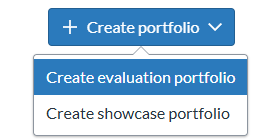
If you are an instructor, you will also see an Evaluation tab, which lists any Evaluation Portfolios you have created. Clicking the '+Create portfolio' will allow you to create either an evaluation or showcase portfolio.

For any questions about using Portfolio, please reach out to ATS
email helpdesk@findlay.edu
or call x4357 x2