
To help 0students find a time to meet with you when they are using Starfish, you can connect your Outlook calendar to your availability in Starfish.
Please follow these steps to connect your Outlook Calendar to your Starfish calendar:
- Log in to your Microsoft 365 Calendar, right-click on Calendar > Sharing and Permissions.
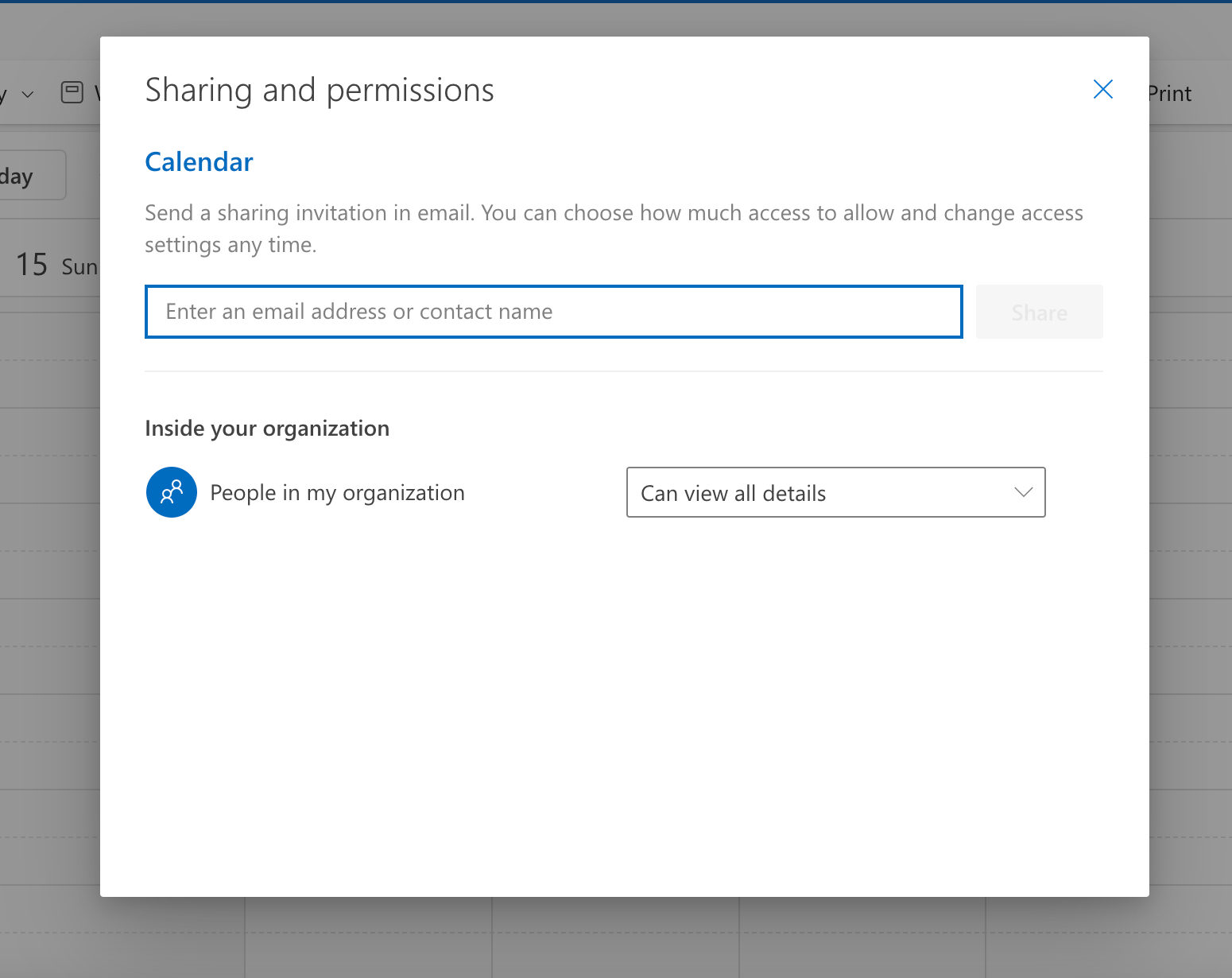
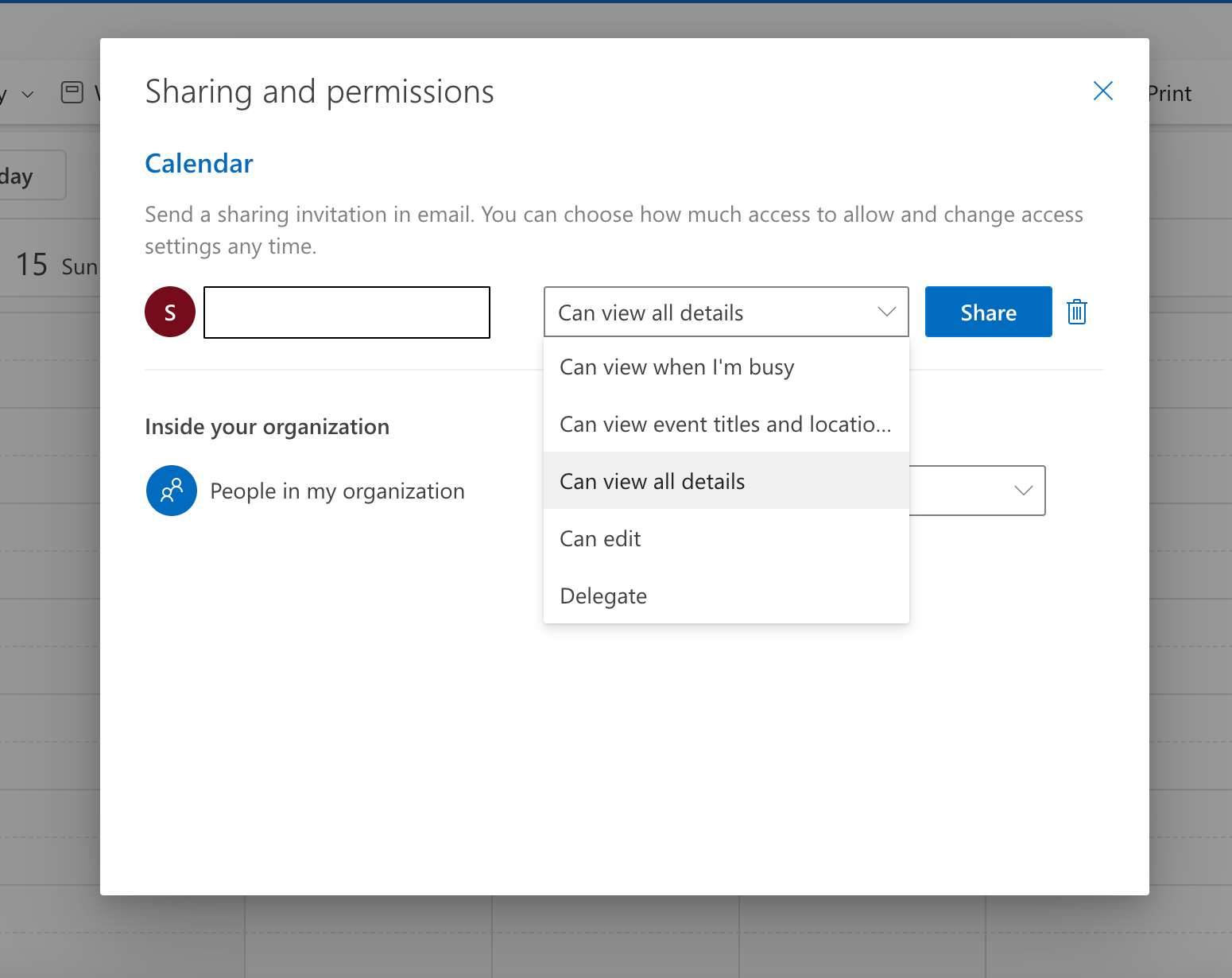
- Search for the Starfish calendar user and select it.
- Select Can view all details from the permission dropdown and click the Share button.
- Once this is set in your Calendar Permissions, navigate back to Starfish.
- Select the Starfish menu.

- Select your name and then Appointment Preferences.

- Under Calendar Sync, select the checkbox "Allow Starfish to read..."
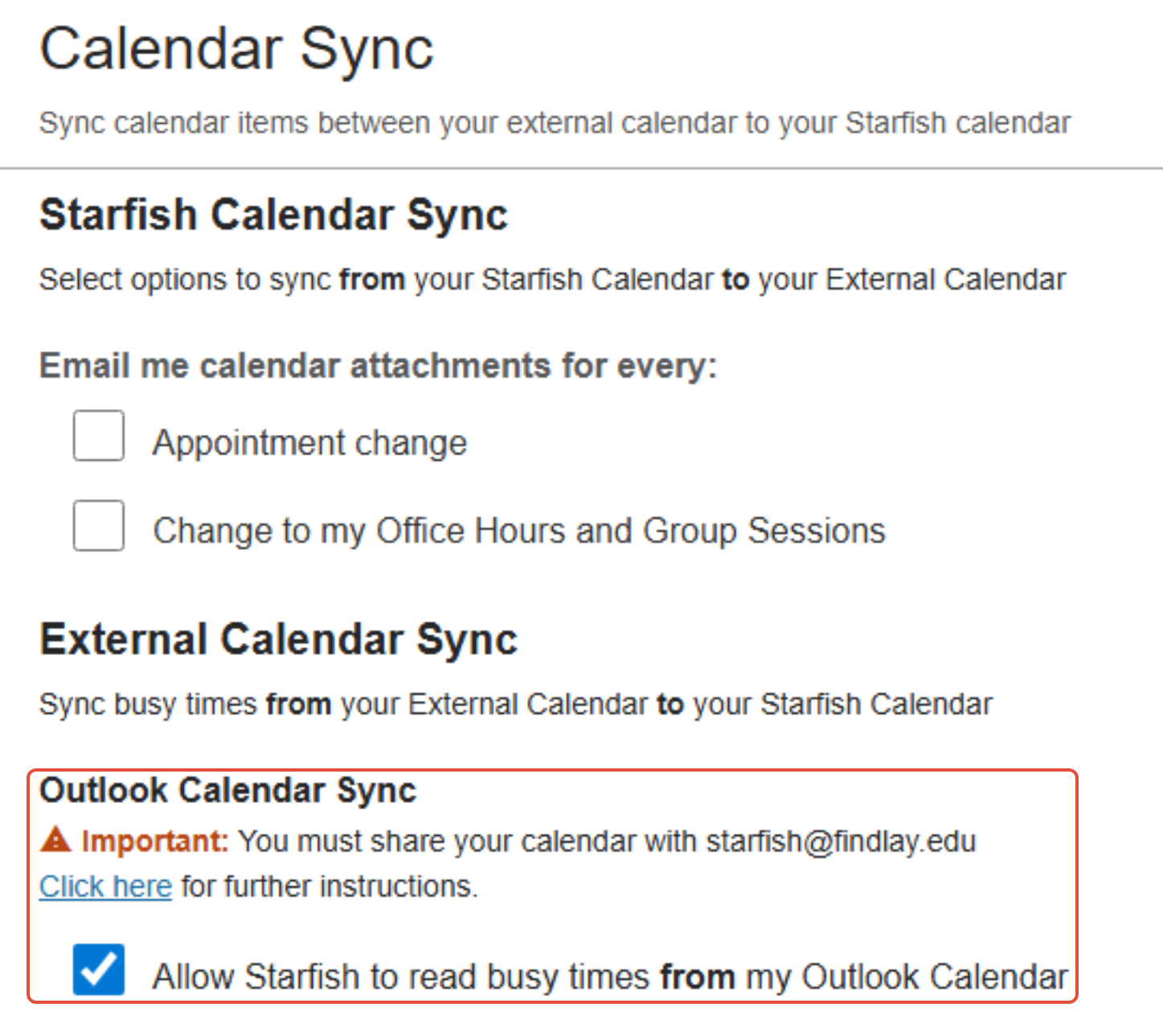
- Select Save Changes.
Once these changes are saved, it could take up to 5-10 minutes for your calendar items become available in Starfish.
If you have any questions or issues, contact Technology Support Services
419-434-4357 x1