
Setting up the Microsoft Authenticator app for Multi-Factor Authentication (MFA)
(Click on any image to enlarge)
1. On your Smartphone, begin by logging in to your UF email account: http://mail.findlay.edu
2. In the top right, click on your account picture.
3. Click on the "View account" link.
4. Under the "Security Info" card, click on "Update info".
5. To add a new device, click on "Add sign-in method". 
6. Choose “Microsoft Authenticator”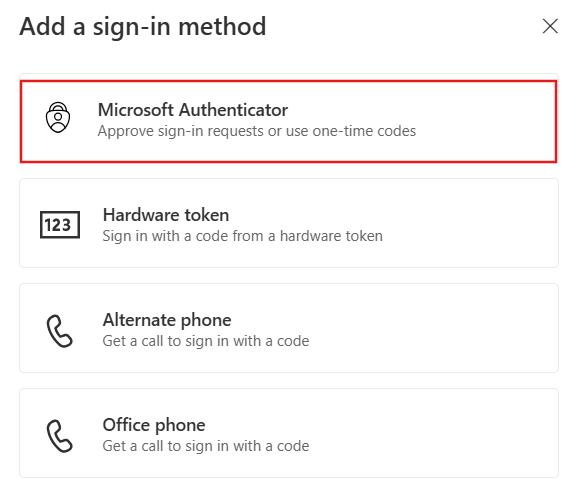
7. On your phone, download the Microsoft Authenticator app from your app store. When you see the message below, click the 'Download now' link if the app is not already installed. You can also install the Microsoft Authenticator app by searching your App Store or Google Play. Return to this screen and click the Next button.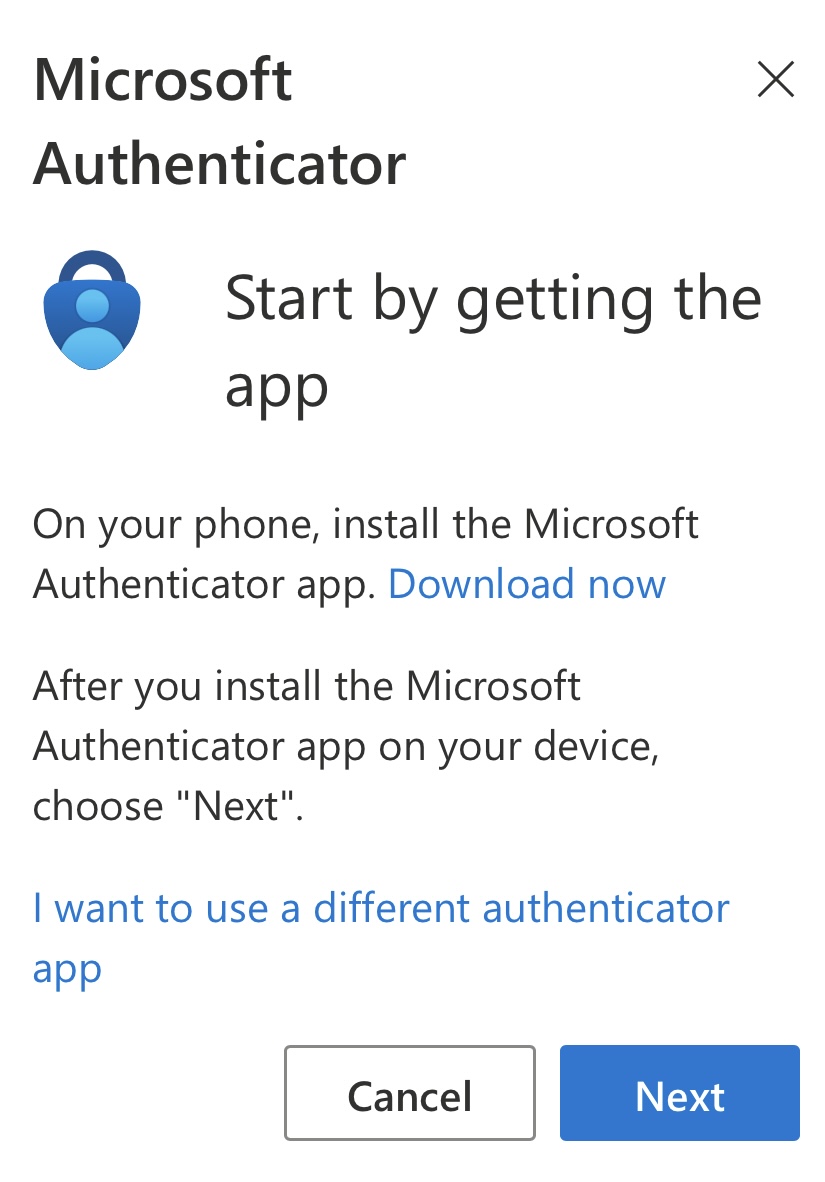
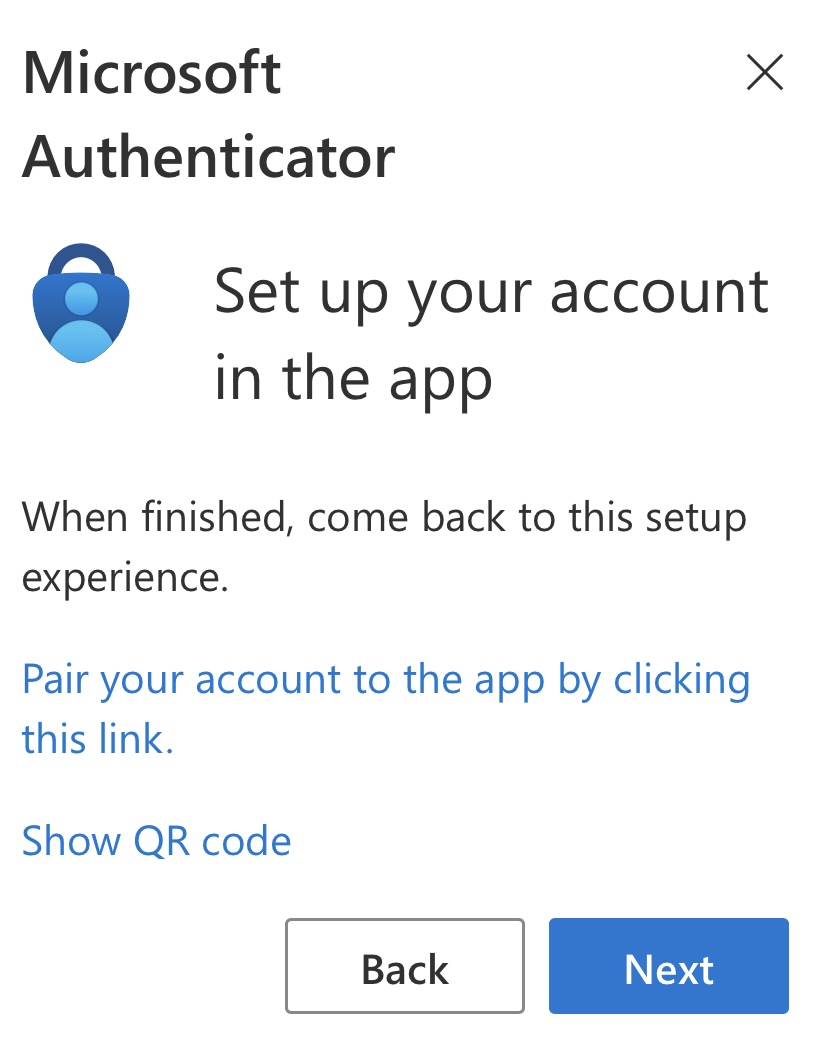
8. Tap "Pair your account to the app by clicking this link"
Return to the web browser and tap Next after it adds your account in the Microsoft Authenticator App.
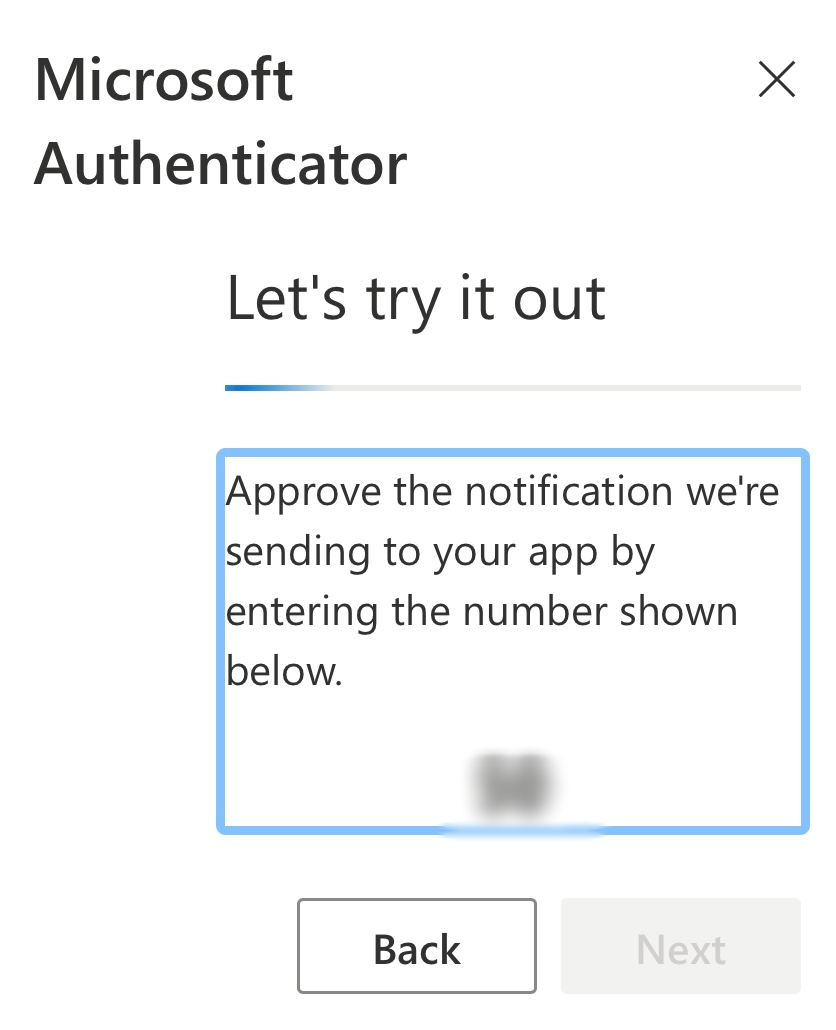
9. After clicking 'Next', you will receive a push notification. Tap the notification to approve your sign-in, and type in the numbers that are displayed in your browser.
10. Return to the web browser and click Next if available. A green banner will appear at the top indicating you have activated your MFA app.
11. This should complete the setup, and you can now use the Microsoft Authenticator app as your multi-factor authentication method.
Your Microsoft Authenticator app should pop up on your phone as a notification that you will need to enter the 2-digit number provided at login and approve.

You should not need to open the Microsoft Authenticator app to do this. If the app is having you open or unlock the app for authentication, you may turn App Lock off with the following instructions:
Turn App Lock off
In the Microsoft Authenticator app on your device, tap the menu button in the top left (iPhone) or top right (Android)
iPhone:

Android:

Tap Settings.

Scroll down and locate 'App Lock' and turn it off (if it is already off, turn it on and back off, or it will turn on in the future).
NOTE: By turning this off, you will be able to utilize other smart devices to approve your login. If you leave it on, you will be required to enter your phone lock code every time you approve the login.
419-434-4357 x1